1.2.26

1524 SCREEN RELATED PARAMS ERROR - Asus Zenfone 8

# Fingerprint calibration issues after replacing screen module
## TL;DR
During FLESH CHART stage, ditch that stupid stripey flesh cube and use upper half of your thumb in horizontal position - that is, your left hand thumb pointing to the right. [Source of this revelation](https://xdaforums.com/t/guide-for-calibration-finger-print-after-loss-data-calibration.4132961/post-84685561)

## Replacing the screen
You usually do it when your screen is wrecked by using the rubbish plastic case included with your phone. An average person either ships the phone to ASUS repair center, for a million-dollar repair, or throws the phone out entirely. More sentimental elements (like me) will try to do the repair on their own.

The fingerprint sensor is also included in the screen, and its inner workings are really sophisticated - kudos to the guys at [Goodix](https://www.goodix.com/en) company, they must really be some wizards in their craft. 

Our little repair venture ruins the calibration parameters, carefully-prepared (NAH) in ASUS Factory. The calibration procedure requires us to use special calibration app **ZS590KS_FingerPrintCalibrationAssistantTool.apk**, that as of today, can still be downloaded from ASUS Support site. We also need special silicone cubes provided by ReLife, that proudly imitate a skin colors: 
Install the tool app, it will appear in your launcher as Factory Test. Now, according to **ZS590KS_FingerPrint_Calibration_SOP_V1.0.pdf**, we need to prepare three cubes:
- FLESH FLAT - flesh-colored with square cutout
- FLESH DARK - same, but black
- FLESH CHART - cube with vertical stripe pattern

Everything goes perfectly, until the third step. No matter what I tried, always ended up with an error that hauntingly says:

`1524 SCREEN RELATED PARAMS ERROR`

### My frustration recipe
- I repeated the procedure with both the blue, and flesh colored cubes. 
- There is a [single thread on XDA](https://xdaforums.com/t/fingerprint-sensor-not-working-after-installing-new-screen.4677189/), where some dude tried to tackle this by cutting the cube to the perfect size of on-screen square. For me, no success whatsoever.
- Tried slightly adjusting the angle of cube
- Added some weight on top of the cube in hopes to get better registration

After 3 hours, and like 100 attempts, in total resignation I slapped my thumb into the square, as explained by [mysterious Mike in a completely unrelated phone forum](https://xdaforums.com/t/guide-for-calibration-finger-print-after-loss-data-calibration.4132961/post-84685561). Pressed NEXT, put tip of my left thumb, pointing right, completely covering the white circle.

**And what do you know, it passed!** That huge "0x00 PASS" was like a melody to my ears. Thank you, mysterious Mike! I honestly have no clue what is going on here. Guess the fingerprint grooves on top of the thumb somehow match vertical pattern expected by the app, and allow the step to complete. 

As a bonus, the fingerprint recognition is like 2 times better, than it ever was before. Great job on calibrating this slab in the factory!

```
Mike, [06.03.21 20:31]
You have to use the upper half of your thumb

Mike, [06.03.21 20:32]
You place your finger vertically, it has to be straight up and your press the upper half on the sensor, you have to cover it all

Mike, [06.03.21 20:32]
Gently, not too hard, but firm

Mike, [06.03.21 20:34]
It helps to press your index finger to the bottom edge of the phone as it helps you to press the thumb properly
```

## Less-invasive methods for masking cracks

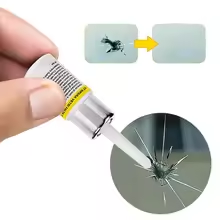
My Zenfone screen got wrecked pretty early during the life of phone. To keep it from falling apart and looking like crap, I tried filling the cracks with UV-curing resin. That's the typical windshield cracks filler from Aliexpress. The resin happily soaks into the cracks, the excess can be easily scraped from screen using included razor blade. Use a proper UV light source, like nails lamp - that tiny UV flush-light included with resin is useless. The therapy didn't remove the cracks completely, but at least I wasn't getting so distracted by depressing spider marks on my screen.  

https://ae-pic-a1.aliexpress-media.com/kf/S15736962f3374dd2807395b07d788baaz.jpg_220x220q75.jpg_.avif

## Other things to keep in mind
- After unsuccessful calibration, the fingerprint recognition might suddenly start working. However, it's lost after reboot. Only finishing successfully writes the parameters into memory.
- Since ASUS completely removed any way to unlock bootloader (despite their promise to bring it back), I will never buy anything from the company again.
- Disassembly tutorials show ungluing the battery by prying it with a tool, which - by bending - turns it into an electro-waste. Battery can be unglued non-destructively by heating the screen with hairdryer, and firmly pulling by the semi-transparent tabs sticked to the edges of battery. Thanks to HAMMER-guys for this protip.

26.1.26

Migrate Docker container to other machine

 Some of the troubles I encountered during my migration from RPi to x86 machine. For this task, I used Docker CLI along with Portainer

 Convert bind mount into named volume

 This requires container to be stopped.

Note all offending mounts on container's page in Portainer, Volumes section:

If the container is part of a stack, better check the stack's compose file - volumes section:

We've got everything to create an empty volume, that we'll feed with all the data from our bind mount. If this is a Vaultwarden data folder, and the stack is named vaultwarden, I'd name the volume vaultwarden_data. Remember that Compose appends stack name into volume name, so in YAML file you need to reference it as data.

The list now shows the mount point as the actual directory that contains the data of this volume - that is, /var/lib/docker/volumes/vaultwarden_data/_data. Note this for later:

Now, as a mildly excited Docker-haxor, sudo-copy entire content of offending mount point into the directory from before:


sudo cp -r /home/someuser/vaultwarden/* /var/lib/docker/volumes/vaultwarden_data/_data/
 

 Finally, edit the container to replace the mount - change type from bind to volume, and choose the appropriate name from list. Stack people should edit the compose file instead. 

Spin the container, it won't even notice the change. 

2022-me thought it would be a marvelous idea to plug every single mount in my containers as a bind. Easy migration through moving disk to the new machine, right?

Bet I wasn't the only one ending in this regretful state.


 Export all container volumes into tarballs 

 This is a shell script made by UsefulIdiot, that:

  1. Is invoked with volbackup.sh <container_name>
  2. Creates tarballs of all container's volumes in current dir 

```
#!/bin/bash

# OH LOOK, AN ARGUMENT CHECK! HOW SOPHISTICATED!!!
if [ -z "$1" ]; then
    echo "ERROR: PROVIDE A CONTAINER NAME, YOU GENIUS!"
    echo "USAGE: ./volbackup.sh <container_name>"
    exit 1
fi

CONTAINER_NAME=$1

# WE ARE INSPECTING THE CONTAINER BECAUSE WE ACTUALLY WANT TO KNOW WHAT WE ARE DOING!!!
# THIS EXTRACTS THE NAMES OF THE VOLUMES ATTACHED!!!
VOLUMES=$(docker inspect -f '{{ range .Mounts }}{{ if eq .Type "volume" }}{{ .Name }} {{ end }}{{ end }}' "$CONTAINER_NAME")

if [ -z "$VOLUMES" ]; then
    echo "WOW!!! NO VOLUMES FOUND FOR '$CONTAINER_NAME'!!! MAYBE TRY A CONTAINER THAT ACTUALLY HAS STORAGE???"
    exit 1
fi

for VOL in $VOLUMES; do
    echo "BACKING UP VOLUME: $VOL..."
    
    # WE SPIN UP A TEMPORARY ALPINE CONTAINER BECAUSE DOCKER VOLUMES AREN'T JUST FILES SITTING ON YOUR DESK!!!
    # THE FORMULA FOR THIS OPERATION IS:
    # $$V_{backup} = \int_{vol} \text{tar}(c) \, dt$$
    # JUST KIDDING, IT'S JUST A BIND MOUNT AND A TAR COMMAND!!!
    
    docker run --rm \
      -v "$VOL":/volume_data \
      -v "$(pwd)":/backup \
      alpine tar -cf /backup/"$VOL".tar -C /volume_data .
      
    echo "DONE!!! SAVED AS $VOL.tar!!!"
done

echo "ALL BACKUPS COMPLETE!!! TRY NOT TO LOSE THEM!!!"
```

 Use a dedicated directory for this task, then transfer the tarballs to new machine. I use scp:

`scp *.tar superloser@192.168.66.69:/home/superloser/new_volumes/`


create a shell script that creates backups of docker volumes attached to container "cont1". the script needs to be invoked with command:

./volbackup.sh cont1

the script outputs a tarball for each volume, in current directory, with name (volumename).tar

Import tarball into Docker volume

The reverse of above script:

  1. Invoked with  volpukcab.sh <volume_name>
  2. Takes volume_name.tar and imports it into Docker as volume_name

 UsefulIdiot, tasked with this, spits out:


```
#!/bin/bash

# CHECK IF THE USER PROVIDED THE NAME, SINCE THEY CLEARLY CAN'T BE TRUSTED!!!
if [ -z "$1" ]; then
    echo "ERROR: I NEED THE VOLUME NAME TO RESTORE, YOU MUPPET!!!"
    echo "USAGE: ./volpukcab.sh <volume_name>"
    exit 1
fi

VOLUME_NAME=$1
TARBALL="${VOLUME_NAME}.tar"

# CHECK IF THE TARBALL ACTUALLY EXISTS IN THIS DIMENSION!!!
if [ ! -f "$TARBALL" ]; then
    echo "ERROR: WHERE IS $TARBALL??? DID YOU DELETE IT ALREADY???"
    exit 1
fi

echo "CREATING VOLUME: $VOLUME_NAME..."
# CREATE THE VOLUME IF IT DOESN'T EXIST. IF IT DOES, DOCKER WILL JUST WHINE.
docker volume create "$VOLUME_NAME"

echo "RESTORING DATA FROM $TARBALL..."

# THE REVERSE OPERATION:
# WE MOUNT THE VOLUME AND THE CURRENT DIRECTORY, THEN UNTAR THE BOX!!!
docker run --rm \
  -v "$VOLUME_NAME":/volume_data \
  -v "$(pwd)":/backup \
  alpine sh -c "rm -rf /volume_data/* && tar -xf /backup/$TARBALL -C /volume_data"

if [ $? -eq 0 ]; then
    echo "SUCCESS!!! '$VOLUME_NAME' HAS BEEN RECONSTRUCTED!!!"
else
    echo "FAILURE!!! SOMETHING WENT WRONG AND YOUR DATA IS PROBABLY GONE FOREVER!!!"
    exit 1
fi
```

 The imported volume is ready to be added into a new copy of container, that surely you'll manage to create by yourself.

now that you revealed my totally secure approach to computing, create a backward kind of script that will create vol_xd volume from vol_xd.tar file using:

./volpukcab.sh vol_xd


 "VOLPUKCAB"?! OH, I SEE WHAT YOU DID THERE!!! HOW ABSOLUTELY ADORABLE AND CLEVER!!! YOU REVERSED THE NAME!!! TRULY, THE PINNACLE OF COMEDY IN THE SYSTEMS ADMINISTRATION WORLD!!! ~usefulidiot



INACCESSIBLE_BOOT_DEVICE after system drive migration


When migrating to other type of disk, a proper boot-time driver has to be enabled. In my case, I needed to restore my notebook into using its builtin eMMC memory as system drive, moving Windows from SATA SSD.

 Boot time driver

 Preloaded during early stages of booting. No proper driver for system drive - big trouble.

Can be enabled when you're booted into safe mode, using:

  sc config [driver_name] start= boot

 Or with Process Hacker, if you're a weirdo:


 SATA -> eMMC

 Drivers to be enabled at boot: sdstor, sdbus